
Transferring files from your phone to your computer or the reverse is still excessively complicated and often unreliable. LocalSend provides an easy, high-speed, end-to-end encrypted way to send files between your devices on your local network. Although there are several services and programs that offer similar functionality the open-source and non-commercial nature of LocalSend paired with its simplicity and reliability has made it my daily driver for transferring files between my devices.
Common tasks you can use LocalSend to complete
- Photos or videos from phone to PC
- PDFs and documents between work devices
- Quick text or clipboard sharing
Key advantages of LocalSend that helped me select this as my go-to transfer solution
- No cloud – Sends across local Wifi network.
- No accounts – No accounts required or supported.
- Cross-platform – Works on all major platforms.
- Open-source – Transparent code base and non-commercial development.
Installation
You can download the application from the LocalSend website or through one of the links below to official stores or the github repository.
Android – Play Store / Android – F-Droid
Receiving Files

Opening the application on any device presents you with a simple and clean interface that gives you three primary options.
Receive is the default as application has to be open to be able to receive files from other devices.
You’ll be prompted to accept any files transfer from the Receive screen.
Sending Files
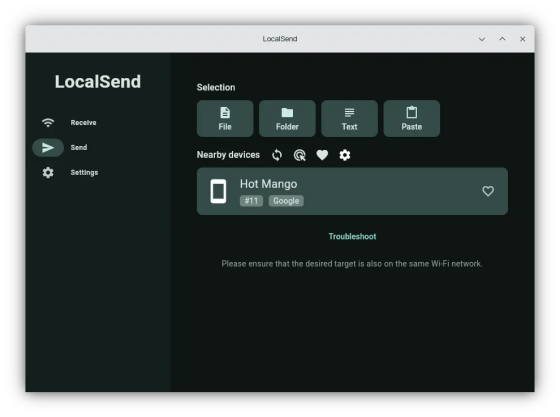
Sending files is done through the Send tab, on computer, it will provide File, Folder, Text & Paste. Additional options of Media & Apps are available on the phone apps.
Devices are automatically discovered on the local network, with no internet connection required.
Once you have selected the data you wish to send select the Nearby device from the list, you can also send to multiple devices simultaneously via the gear icon.
Settings

Settings covers theme options and the major sections are Receive & Network.
- Require PIN – Enables you to increase security by requiring a PIN to send to your device.
For shared or office networks, enabling Require PIN is strongly recommended. - Save to folder – Sets default save location.
- Save to history – Enables or disables saving file transfer in history.
- Server – You can restart or stop the local Server service.
- Device name – Set a custom name for your device.


